How to Merge Vertical and Horizontal Videos Into One (Bars, Blur, Crop or Stretch)
Joining phone clips shot vertically with horizontal footage? The first clip sets the frame, and every clip of another shape gets black bars, a blurred fill, a crop or a stretch. Here's how to choose, free in your browser.
The 60-second version
Open Merge Videos and add your clips in the order they should play. The first clip sets the frame: put a vertical clip first for a TikTok, Reels or Shorts compilation, or a horizontal one first for YouTube. Then choose what happens to clips of the other shape under Clips of another shape (Black bars, Blurred fill, Crop to fill or Stretch) and click Process.
That one setting is the difference between a compilation that looks edited and one that looks broken, so the rest of this post is about choosing it.
Why mixed clips need a decision
A video file has exactly one frame size. When you join a 9:16 phone clip to a 16:9 camera clip, one of them doesn’t fit the frame, and something has to give: either the picture gets smaller (bars or blur around it), it gets trimmed (crop), or it gets distorted (stretch). There’s no fifth option. Editors make this choice too; they just make it for you, usually with black bars.
The first clip sets the frame
With Resolution on Original, the merged video takes the first clip’s size, and every later clip is fitted into it. So:
- Making a vertical video (TikTok, Reels, Shorts, Stories)? Put a vertical clip first.
- Making a horizontal video (YouTube, a TV, a presentation)? Put a horizontal clip first.
Picking 1080p, 720p or 480p instead fits every clip, the first one included, into a horizontal 16:9 frame of that size. That’s handy for YouTube, but for a vertical result keep Resolution on Original.
Four ways to fit a clip of another shape
The examples below show the same merge each way: a horizontal market scene sets the frame and a vertical clip of a couple dancing follows it. (Both are royalty-free stock clips from Pexels.)
Black bars
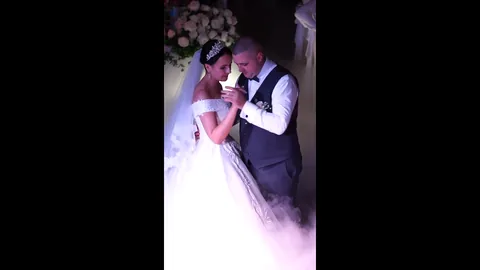
The whole picture, shrunk to fit, with black at the edges. Nothing is lost or distorted. It’s the honest default and suits YouTube and presentations, but a vertical clip in a horizontal frame fills only about a third of its width.
Blurred fill
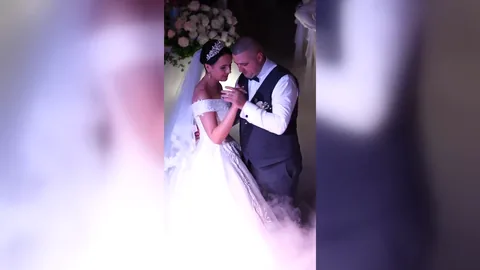
The whole picture again, but the edges are filled with a blurred, zoomed-in copy of the same clip instead of black. This is the look most social editors use for mixed footage: nothing is cut off, and the frame doesn’t feel empty.
Crop to fill
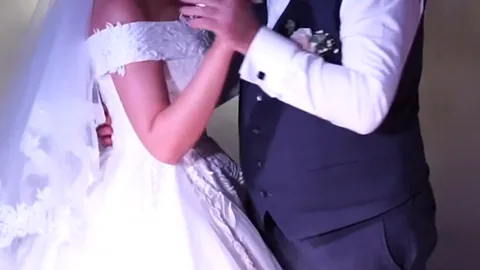
The clip is enlarged until it fills the frame and the overflow is trimmed. No bars and no distortion, but you lose part of the picture, a lot of it when the shapes are very different (a vertical clip in a horizontal frame keeps only about a third of its height). Use it when the subject is in the middle of the shot.
Stretch
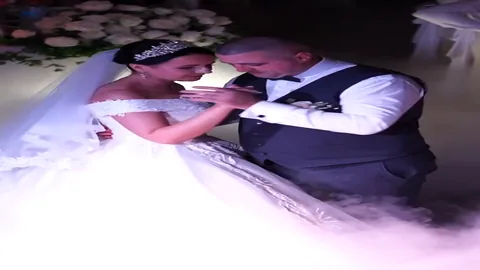
The clip is pulled to the frame’s shape. It fills everything and keeps every pixel, but people and objects come out wider or taller than they are. Unless the distortion is the joke, pick one of the other three.
Step by step
- Add the clips to Merge Videos. MP4, MOV, MKV, WebM and more can be mixed in one merge.
- Put them in order. The list order is the timeline, first to last, and the first clip sets the frame.
- Set Resolution: Original keeps the first clip’s size; 1080p, 720p and 480p give a horizontal 16:9 frame.
- Pick Clips of another shape: Black bars, Blurred fill, Crop to fill or Stretch. It only applies to clips whose shape differs from the frame.
- Choose the output format and quality, then Process and download.
Good to know
- Frame rate: when clips have to be re-encoded to be joined (different sizes or frame rates, or a resolution you picked) the result comes out at 30 fps. For 60 fps, run the merged file through the FPS Changer afterwards, or AI frame interpolation for genuinely smoother motion.
- Sound: each clip’s audio plays with its own part of the video.
- Browser or our servers: in your browser the clips never leave your device and the download is free with no watermark, but the browser is limited by your device’s memory (roughly 800 MB of video in total). Bigger merges run on our servers, where the result is free to preview and downloads with any plan (a free account gets 2 downloads a day for results up to 30 seconds).
- Want a transition between two clips? Video Transitions joins two clips with a crossfade, wipe or zoom; the second clip is fitted into the first one’s frame.
Related tools
- Stretch Video changes one clip’s shape on its own, if you’d rather fix a single clip before merging.
- Resize Video sets an exact platform size like 1080×1920 after the merge.
- Cut Video trims each clip to the part you want before you join them.
FAQ
Which option looks best on TikTok and Reels? Usually Blurred fill: the whole clip stays visible and the screen doesn’t look empty. Use Crop to fill when the subject is centred and you want the clip to fill the phone screen edge to edge.
Why did my vertical clips get black bars at the sides? The first clip was horizontal (or a resolution like 1080p was picked), so the merged video is horizontal. Move a vertical clip to the top of the list and set Resolution to Original.
Can I mix photos and videos? Merge Videos joins video files. To put a still image at the start or end of a video, use Add Intro Image or Add Outro Image.
Is there a watermark? No. Server results are previewed first, then download clean with any plan, or within a free account’s 2 downloads a day for results up to 30 seconds.